TryHackMe OpenVPN Linux Room Walkthrough (Beginner’s Guide)

Quick answer: To connect Linux to TryHackMe, download your
.ovpnfile from the TryHackMe Access page, install OpenVPN withsudo apt install openvpn, then runsudo openvpn yourfile.ovpn. When you see “Initialization Sequence Completed”, runip a show tun0. A 10.x.x.x address means you’re connected. Keep that terminal open while you work.
Welcome!
This article is a complete walkthrough for the TryHackMe OpenVPN Linux Room on TryHackMe. It’s designed to help Linux-based learners connect securely to TryHackMe’s private network using OpenVPN, a prerequisite for many hands-on labs hosted outside the browser.
Room Description
“A guide to connecting to our network using OpenVPN.”
This TryHackMe OpenVPN Linux tutorial room helps Linux users set up THM VPN for secure access to TryHackMe machines and challenges.
Access the Lab: TryHackMe OpenVPN Linux
YouTube Video Walkthrough
Prefer watching instead of reading? Check out this detailed walkthrough tailored for Linux users:
💬 Don’t forget to like, share, and subscribe for more Linux-focused cybersecurity content
Step 1: Download Your OpenVPN Configuration File
Navigate to the Access section on TryHackMe. From there, click the “Download My Configuration File” button to get your unique .ovpn file.
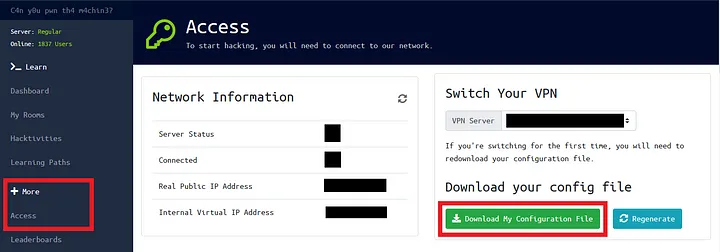
This file allows your system to securely connect to TryHackMe’s network.
Step 2: Install OpenVPN (Linux)
To install OpenVPN on a Debian/Ubuntu-based system, open your terminal and run:
sudo apt update && sudo apt install openvpn -y✅ You may need to enter your password to authorize the installation.
Step 3: Connect Using OpenVPN
In your terminal, execute the following command:
sudo openvpn yourfilename.ovpn

Replace yourfilename.ovpn with the actual name of your config file.
Once the connection is established, you’ll see the message “Initialization Sequence Completed” in your terminal.

This means you’re successfully connected to the TryHackMe VPN network.
Step 4: Confirm VPN Connectivity
To verify your connection, type:
ifconfigYou should see a tun0 adapter listed. This confirms that your VPN is active and functioning correctly.
Step 5: Deploy a Machine on TryHackMe
Head back to TryHackMe and deploy a machine in any room that requires VPN access.

Once deployed, TryHackMe will assign an IP address to the machine:

Note: You might receive a different IP address each time you deploy a machine.
Step 6: Access the Deployed Machine
Use tools like ping, nmap, or netcat, or access web-based services using:
firefox http://<ip-address>Replace <ip-address> with the one assigned by TryHackMe..
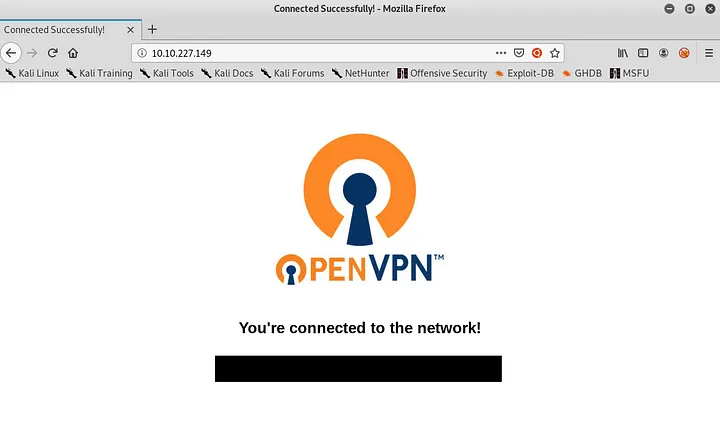
You should be able to access the machine’s web interface if everything was configured properly.
Congratulations – you’ve completed the TryHackMe OpenVPN Linux setup challenge on TryHackMe!
Special thanks to Mr. Professor for his guidance and support on this path to cybersecurity mastery.
You may also like the TryHackme Cybersecurity Roadmap for Beginner to Advence.
Frequently Asked Questions
How do I connect to TryHackMe on Linux?
Download your .ovpn configuration file from the TryHackMe Access page, install OpenVPN, and run sudo openvpn yourfile.ovpn in a terminal. When the output shows “Initialization Sequence Completed”, you’re connected to the TryHackMe network.
How do I check if I'm connected to the TryHackMe VPN?
Run ip a show tun0. If you see a tun0 interface with a 10.x.x.x address, the VPN is working. The TryHackMe Access page will also show you as connected, and you should be able to ping the IP of a machine you’ve started.
Does this work on Kali Linux and Parrot OS?
Yes. Kali and Parrot are based on Debian and usually have OpenVPN pre-installed. Download your config file and run sudo openvpn yourfile.ovpn. The steps are the same as on Ubuntu.
Why does the VPN disconnect when I close the terminal?
OpenVPN runs inside that terminal session, so closing it stops the connection. Keep the terminal open in its own tab, or start OpenVPN in the background with the --daemon option.
Do I need the VPN for every TryHackMe room?
No. Many rooms work entirely in the browser, and the AttackBox gives you a ready-made hacking machine without a VPN. You only need OpenVPN to attack lab machines from your own Linux system or virtual machine.
Conclusion
You’re now connected to TryHackMe from Linux: download your .ovpn, run sudo openvpn, and confirm tun0 has a 10.x address. Keep this page bookmarked for the troubleshooting list. On Windows instead? See the TryHackMe OpenVPN on Windows guide. Then pick your next room from my TryHackMe Roadmap.